
How it works
Three things make a great answer: context, the conversation and one button.
This page explains everything that happens between the moment you start listening and the words on your screen. It also covers every option that you can change along the way.
The big picture
OnSubject.AI builds every answer from 3 ingredients. It puts them together the moment you ask:
1. Your Scenario
It tells OnSubject.AI who you are, what you want and how to answer. It also holds the documents that back you up. You prepare it once, and it's loaded before you even ask.
2. The conversation
This is the live transcript of the last few minutes, with who said what, your corrections and the answers already given. It also includes your earlier conversations in this Scenario.
3. Your request
This is the button that you press, or its keyboard shortcut. You can ask OnSubject.AI to answer now, answer with a screenshot, answer a part of the screen or answer a question that you typed.
Each answer is the next thing that you should say. It's written in your style and uses your facts. It also knows everything that was said so far. The answer appears on your screen word by word, so you can read the first line after about half a second.
Scenarios
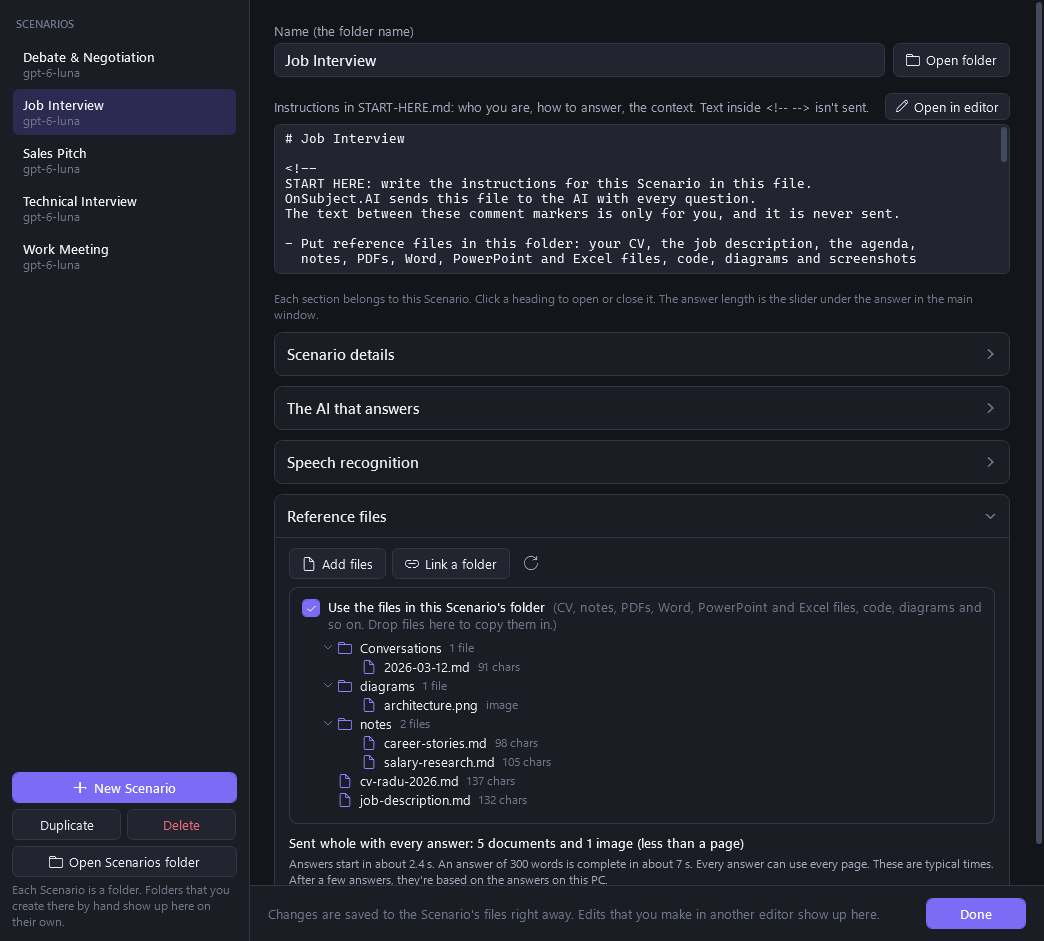
A "Scenario" is one situation that you want help with: a job interview at a specific company, your weekly operations meeting, a debate, a sales pitch or an architecture review. Each Scenario is a folder on your PC, like the one below. It also remembers your conversations.
- START-HERE.md your instructions, sent with every question
- scenario-config.json answer style, length, language, linked folders
- cv-radu-2026.pdf read automatically
- my-career-stories.docx
- job-description.docx
- northwind-investor-deck.pptx slides and speaker notes
- salary-research.xlsx
- Conversations saved as you talk
- Create, rename, duplicate or delete Scenarios in the app (+ New Scenario), or directly in File Explorer. A new folder appears as a new Scenario at once. If the folder is empty, it gets a template that's ready to fill in.
- Switch Scenarios from the list at the top of the window, or from your phone. Duplicating a Scenario is the fastest way to make a new one for a similar situation: "Job Interview · Northwind" becomes "Job Interview · Contoso" in a minute. The copy doesn't have any conversations yet.
- Listening belongs to one Scenario. You can't switch Scenarios while you listen, so every line is saved where it belongs. To switch, stop listening first.
- Edit anywhere. Use the built-in editor or your favourite text editor. Your changes are used at once, even in the middle of a conversation.
- The app comes with 5 starter Scenarios: Job Interview, Technical Interview, Work Meeting, Debate & Negotiation and Sales Pitch. Each one has sensible answer settings.
- Keep them anywhere. The Scenarios folder can be in OneDrive or any other synced folder, so it follows you to another PC.
Placing your context: what goes where
The way you give OnSubject.AI its context makes the biggest difference to the quality of its answers. The rule is simple: put instructions that apply to every Scenario in GENERAL.md, instructions for this Scenario in START-HERE.md, and facts in files. GENERAL.md sits in the Scenarios folder and is sent first. A new Scenario does not repeat it. Name each file and folder for what it holds. The instructions tell the AI to choose what to read from those names, and to also read a file when another instruction points to it.
START-HERE.md: 3 short sections
# Job Interview · Northwind

## Who I am and what I want
I'm Radu, a Director of Operations with 22 years in logistics and e-commerce.
I'm interviewing for Head of Operations at Northwind.
The company is opening in 3 new countries in 2027.
I want to lead a team of 30+ people.
I want hybrid work (2 days remote) and a package of around €110k.

## How to answer
- Give me the exact words to say. Saying them should take 60 to 90 seconds.
- Use a real story from my files, with one number in it. Never invent experience.
- Be warm and confident, but never arrogant. Never criticise past employers.
- If the question is about salary, start with the value that I bring. Then give the range.
- When it fits, end with a short question back to them.

## Context
<!-- Only for me: the hiring manager is Ana Ionescu. She used to work at DHL, and she values data. -->
This is interview 2 of 3, with the hiring manager and the CFO. It lasts 60 minutes.
- Who I am and what I want goes first: your role, the situation and your goal. Answers are always written for you, so OnSubject.AI needs to know who "you" is.
- How to answer is a list of rules: tone, length, structure, what to always do and what to never say. Short bullet points work better than paragraphs.
- Context holds the few facts that every answer needs: who's in the room, the agenda and what's at stake. Anything bigger belongs in a file.
- Comments are private. Text between
<!--and-->is only for you, and it's never sent. Headings that you leave empty are skipped, so leaving the template's hints in place doesn't make your answers start later.
Reference files: the facts
Drop files into the Scenario folder, and they're read automatically. This works for PDF, Word, PowerPoint (with speaker notes), Excel, RTF, Markdown and text, notebooks, any source code, and images such as diagrams, whiteboard photos or screenshots. You can also link a folder that's somewhere else, like a code repository or a shared drive. If you like, you can limit it to some file types, such as *.md;*.pdf.
Tips that make a real difference
- Name files for what they are:
job-description.docx,contract-acme-2026.pdf,q3-budget.xlsx. Good names help OnSubject.AI find and quote the right file. - Write a "stories" file. Describe 10 real situations from your experience. For each one, say what you did and give one number. It's the most valuable document that you can add.
- Use one Scenario per audience. An interview with HR and an interview with the CTO need different instructions.
- Prefer fresh over complete. Last quarter's numbers beat 5 years of archives. Remove what's outdated.
Documents and knowledge bases
OnSubject.AI adapts to how much you give it:
- A normal Scenario (a CV, a job description, a few PDFs) is read whole for every question. Every answer can use every page.
- A big document set (a knowledge base, a product wiki or a code repository with thousands of files) is indexed on your PC and searched for every question. Each answer gets your instructions, the core documents at the top of each folder, a map of the folders and the passages that best match what was just said.
- Deep search (Pro and Ultimate): when the best answer needs more than those passages, OnSubject.AI opens more of your documents by itself. While it reads, you see "Opening contract-acme.pdf". Those answers start a moment later, and they include the exact clause.
- Always up to date. When you add, edit or delete a file, the index is updated within seconds. Only what changed is read again.
- Earlier conversations in the Scenario are read like your documents, so new answers stay consistent with what was already said. More below.
For very large collections: add a top-level README or index file that explains what's where. It becomes a core document, so every answer knows where to look.
Answer style, length and language
Each Scenario decides how its answers look. Pick the style that matches how you speak under pressure:
Spoken script only
The default: what to say, word for word.Line to say + bullet points
One line to open with, then the key facts.- Cost: €38k, saving €9.5k a month
- Owner: me, with Finance
Bullet points only
Only the facts, for people who prefer their own words.- Contract §7.2: 2% credit per week late
- Split: 60% air, 40% sea
- Decision by Friday
One sentence
A single sentence, for a fast back-and-forth.| Answer length | A slider under the answer sets how long answers should be, from about 20 to about 600 words. It's a guide and not a cap: when an answer needs more to be complete, for example the full code of a coding exercise, it gets more. The same slider is on your phone. |
|---|---|
| Reply language | It's the same language as the conversation, or always one language that you choose. The conversation can be in Romanian and the answer in English, if that's what you need. |
| Names and jargon | Add a short list of names, products and acronyms ("Ionescu, Kubernetes, CQRS, Contoso"), so that speech recognition spells them right. |
| Use the folder's files | It's on by default. Turn it off for a Scenario that should only rely on its instructions (and the conversations that it remembers). |
| Linked folders | OnSubject.AI uses folders or files where they are. You choose whether subfolders are included, and you can limit a folder to some file types if you like. |
Listening
OnSubject.AI turns speech into a live transcript, sentence by sentence, while people are still talking.
| PC audio (Them) | It hears everything that your PC plays: Zoom, Teams, Meet, a browser or a call. By default, it listens to both your speakers and your headset, because many call apps use a different device. |
|---|---|
| Microphone (Me) | Turn it on if you also want your own voice in the transcript. Then use headphones, so that the others aren't heard twice. |
| Your phone | For meetings in a room, your phone listens. It labels each line Me (the louder voice, which is you) or Them (the others). More about the phone. |
| Your PC's speech detection | Speech is turned into text on your PC, and the audio never leaves it. It's unlimited on every plan. |
| AI transcription | It gives the most accurate recognition, especially with names, accents and jargon. Hours are included with Pro and Ultimate. When they run out, your PC's speech detection takes over automatically. |
| Language | It's detected automatically, or you can set one language for the best accuracy. |
| Pause and sensitivity | Set how long a pause must be to end a sentence, and how loud speech must be to count. The defaults suit most calls. |
When you ask for an answer, OnSubject.AI finishes the sentence that is being spoken right away, without waiting for a pause. That way, the last words of the question are always included.
Listening belongs to the Scenario where you started it. Everything that it hears is saved there. To switch to another Scenario, stop listening first.
The transcript
The transcript is the question. OnSubject.AI answers what's in it, so you're in control of it:
- Correct any word. Click a line and type. You can fix misheard names, numbers and half-heard questions. Answers always use your version, and the lines that you corrected are marked.
- Remove what would confuse it. That can be small talk, noise or a wrong guess. The ✕ next to a line removes it from the conversation, and so does erasing its text. Undo brings it back.
- Type a question. Type in the box under the transcript and press Enter. Your question is added as a Typed line and answered at once. This works well for "Summarise the decisions so far" or "What's our best counter-offer?".
- A Follow-up line. Choosing one of the 3 questions under an answer adds it here, marked Follow-up, and answers it at once.
- Answer one specific line. Every line has its own answer button. Use it when the question came a minute ago.
- Start fresh. Clear transcript starts a new conversation. The previous one stays saved in the Scenario (and yes, Undo works here too).
- How far back it looks. Each answer reads the last few minutes of the conversation. By default, that's 5 minutes, so answers start quickly and stay focused. When you want a recap of a whole meeting, raise it to as much as an hour (Settings › Audio & transcription).
Getting answers
| Answer | It answers the latest question. Click it, tap it on your phone or press its keyboard shortcut from any app. Press it again to start over with the newest words. |
|---|---|
| Answer + screen | It answers with a screenshot of your monitor. Use it for slides, code, charts and error messages. |
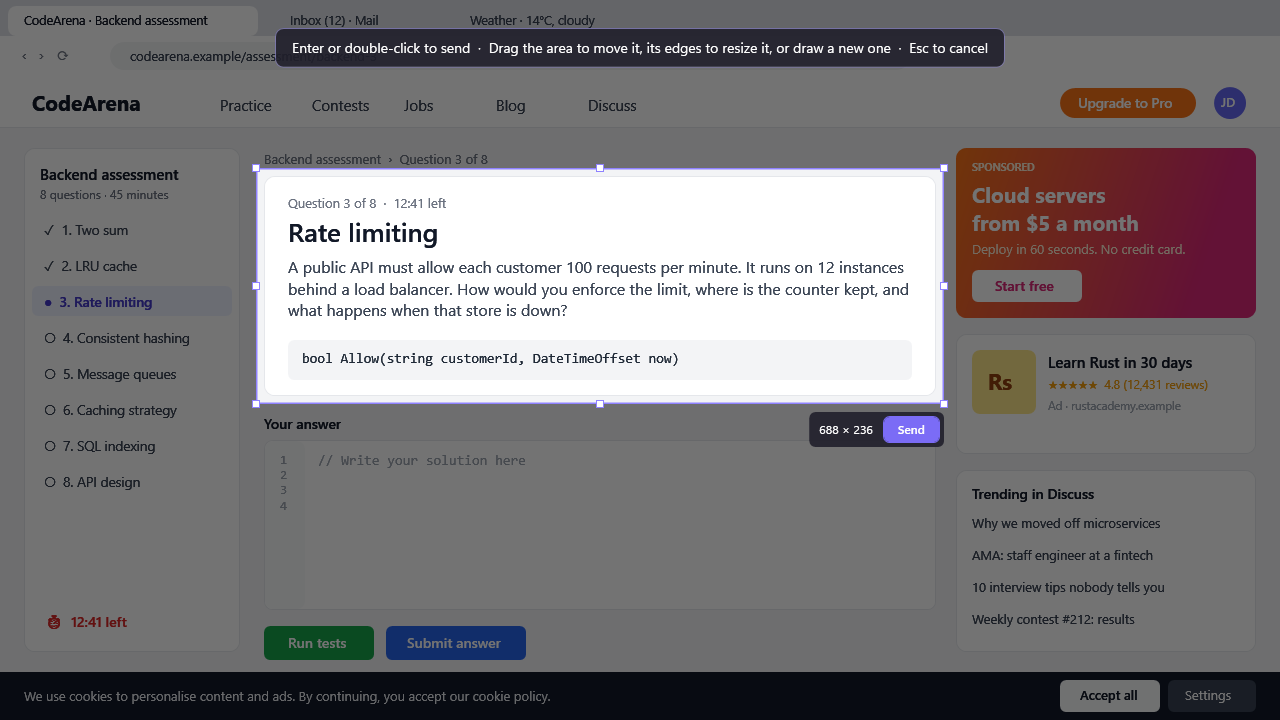
| A part of the screen | It answers what's in a box that you draw on the screen. The last area is remembered, so you only need to start it and press Enter. |
| Listen | It starts or stops listening. |
| Show or hide | It brings the window back, or puts it away while OnSubject.AI keeps working in the background. |
Each of these has a keyboard shortcut that works from any app, even while the window is hidden. You can change them, or turn one off, in Settings › Hotkeys.
- It understands follow-ups. Every question also includes the answers that were already given in this conversation. That way, a question like "can you expand on that?" makes sense, and new answers stay consistent with earlier ones. You can turn this off.
- Three questions at the end. Every answer offers 3 questions that might follow next, or that go deeper. Click one, on the PC or on your phone. The question is added to the transcript as Follow-up, and its answer is written at once. Those questions stay with the answer, so they come back when you browse earlier answers or reopen the Scenario.
- Browse earlier answers with ‹ ›, or swipe through them on your phone. The PC follows along. Answers from earlier conversations in the Scenario are there too, marked Earlier in this Scenario. Copy one with a click.
- Remove an answer that you didn't use (🗑). It then no longer counts as something that you said, so follow-ups won't build on it. Undo brings it back.
- Stop an answer whenever you like. You can also make the answer text as large as you need to read it at a glance.
Screenshots and areas
Some questions aren't spoken, like a coding exercise, a chart on a shared slide or a clause on screen. Add what you see to the question.
- Which monitor: it's the one that you used last. You can pick another one from the ▾ menu next to Answer + screen. The menu shows a small picture of each monitor.
- From your phone: Photo › Screenshot works like Answer + screen. With 2 or more monitors, the phone shows a picture of each one, and you tap the one to capture.
- A part of the screen: drag a box. You can move it, resize it from the edges and corners, or draw a new one. Enter, a double-click or Send sends it, and Esc cancels. The area is remembered, even after a restart.
- It stays out of the screenshot: OnSubject.AI hides itself while it captures the screen, then comes back.
- Detail: choose a higher detail when small text on a large or 4K screen needs to be readable.
Window and hotkeys
| Always on top | The compact window stays on top of your call. It never takes the focus away from the app that you're using. |
|---|---|
| Out of screen sharing | By default, the window stays on your screen but is left out of screen sharing and recordings, so the people on the call don't see it. This is set per Scenario, and it applies only while that Scenario is selected. You can turn it off under Scenario details in the Scenario editor if you want to share the window. |
| Or in the background | The window isn't on the taskbar. It's an icon in the notification area, and you can choose a plain Windows icon there so that it doesn't stand out. If you close the window, OnSubject.AI keeps running. It keeps listening, and your keyboard shortcuts and your phone keep working. The icon brings the window back. Exit is in that icon's menu. |
| Transparency and text size | You can make the window a little see-through. You can also make the answer as large as you like, so it's easy to read at a glance. |
| Transcript panel | Show it, hide it or resize it to leave more room for the answer. |
| Start listening on launch | This suits people who open OnSubject.AI right before every call. |
| Hotkeys | Change any of the 5 shortcuts, or untick one so that another app can use it. |
| Scenarios folder | Move it to OneDrive or any synced folder to share it across PCs. |
| Phone access | It's off until you turn it on. Then scan the QR code. To learn more, see the phone companion. |
Conversations that it remembers
Each Scenario remembers its conversations. As you talk, OnSubject.AI writes the conversation into the Scenario's own Conversations folder. Each conversation is one clean text file (Markdown). Every line has its time and speaker, and every suggestion is marked [OnSubject.AI] right where you asked for it.
# Weekly Ops Sync, 2026-10-16 09:14:22

**09:14:22 Them:** I have a quick update from the supplier, and it's not great.
**09:14:31 Them:** The shipment slips 3 weeks. Can we absorb that?

> **09:14:33 [OnSubject.AI]:**
>
> **Say:** "Partly, because their contract gives us 2% back per week of delay..."
> - Action: Procurement, by **Friday**

**09:15:02 Me:** Partly, and we don't have to pay for all of it. Section 7.2...
- It comes back. When you pick the Scenario again, tomorrow or next week, the conversation is back on screen with its answers.
- Answers build on it. Earlier conversations are read like your documents, so new answers stay consistent with what was already said, decided or promised.
- You don't lose anything. Every line is written down as it's spoken, so the conversation survives even a sudden restart.
- A new conversation starts when you clear the transcript. It also starts by itself after 2 quiet hours. The previous one stays in the folder.
- Forget something by deleting its file, or the whole folder. Answers that you removed are left out of the file. A duplicated Scenario doesn't have any conversations at first.
- Save writes a copy wherever you like, to keep or to share. Use it for meeting minutes, interview notes or evidence.
Free for 7 days, without a card
Your next important conversation is already on the calendar?
Walk in prepared, and stay calm when it gets hard. Try every feature of Ultimate free for 7 days.