Phone companion
Your phone becomes a second screen.
Scan one QR code, and your phone shows the live transcript and every answer, in sync with your PC. It can listen in a meeting room, listen to your speakers, take a photo of a question and get it answered, and control OnSubject.AI from your pocket. Meanwhile, the PC can stay in the background.
 Weekly Ops Sync
Say: "We can absorb part of it. Their contract gives us 2% back per week."
- Split the order: 60% by air
- Them09:14:22I have a quick update from the supplier, and it's not great.
- Me09:14:27Go ahead, Mark.
- Them09:14:31The shipment slips by 3 weeks. Can we absorb that?
What it does
Everything that the PC does, in your hand.
The phone and the PC show the same session, live. What you do on one shows up on the other at once, so you don't have to manage a second copy.
See it all, live
The transcript as it's spoken, detecting who speaks, who is you and who is them in different colours too, giving you ways to answer as it streams.
Listen in the room
In a meeting room or across a table, your phone becomes the microphone. It tells your voice apart from the others by how loud each one is. As it learns, it corrects the Me and Them labels on earlier lines. Ultimate
Photo, answered
Point at a whiteboard, a printed sheet, a slide or a screen and take a picture. The photo goes straight to your PC and is answered at once.
Swipe through answers
Swipe through the previous answers left and right and the PC follows along, always being on the same page.
Fix, remove, ask
Tap a line to correct a word, swipe it left to remove it, or type a question and press Enter. When you need help with what was just said, tap Answer.
Three next questions
Every answer ends with 3 questions you can tap. The question appears in the transcript as Follow-up, and its answer is written on your phone and on the PC.
Switch Scenario
Pick your "Scenario" from the list at the top. Quickly get into the subject.
When it helps most
For the moments when your laptop can't be the centre of attention.
- In-person meetings and interviews. The laptop stays closed. The phone lies on the table like a notepad and listens.
- On stage or at a lectern. At a Q&A after a talk, a town hall or a panel, the answers appear on the phone in your hand and stay off the projector.
- When you share your screen. The window can stay out of screen sharing, so the people on the call don't see it. You can also close it. It keeps running in the background on your PC, and you read everything on your phone.
- Paper and whiteboards. Take one photo of a printed case study or a diagram on the wall, and it becomes part of the question.
- A question on the PC's screen. Tap Photo, then Screenshot, and the answer comes with what the PC shows. With 2 or more monitors, you pick one by its picture.
- THEM · 15:02:10So if the builder misses the deadline again, what can we actually do?
- ONSUBJECT.AI ON YOUR PHONE · 0.7 sSay: "You can do quite a lot. Clause 11.2 of your contract gives you 0.1% of the price for every day of delay, and you don't have to prove any loss. After 60 days, paragraph 11.4 lets you end the contract by registered letter. The law is on your side too. When a contract deadline is missed, you can insist that the work is done, or you can end the contract. Either way, you can claim damages."
- ME · 15:02:16You can do quite a lot, and it's all in writing. Let's start with clause 11.2.
Set up in 1 minute
Scan the QR code, and you're connected.
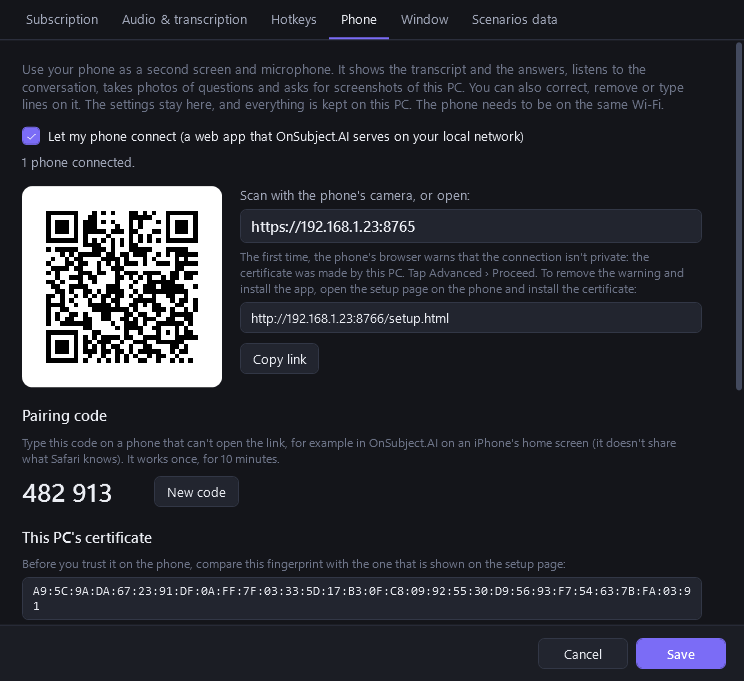
- On your PC, open Settings › Phone and tick Let my phone connect. A QR code appears. The first time, Windows asks whether OnSubject.AI may accept connections on your private network. Allow it.
- On your phone, scan the QR code with the camera. Your phone must be on the same Wi-Fi as your PC. The first time, the browser says that the connection isn't private. That's because the certificate that secures the connection was made by your own PC, rather than by a public authority. Tap Advanced › Proceed.
- Optional, but recommended: open the setup page on your phone and install your PC's certificate. Before you do, check that its fingerprint (a code that identifies it) matches the one in Settings. The warning then goes away for good. You can also add OnSubject.AI to your home screen like a real app.
- Next time, you only need to open OnSubject.AI on your phone. If a phone can't scan the code, type the 6-digit pairing code from Settings instead.
How it stays private
Your phone talks only to your PC.
Direct, on your Wi-Fi
The phone companion comes straight from OnSubject.AI on your PC, over your local network. The connection doesn't go through the cloud. Your conversation doesn't pass through our servers on its way to the phone.
Encrypted with your PC's own certificate
Your PC creates its own certificate authority. That's what signs the certificate that encrypts the connection. Your PC keeps the certificate authority encrypted, and only your Windows account can read it. Before you trust it, you can check its fingerprint on both screens.
Only for paired phones
The QR code carries a secret, and a phone can't connect without it. The pairing code works once, for 10 minutes. At any time, you can click Disconnect every phone to make a new secret.
Your data stays off the phone
The phone stores only its pairing secret. Transcripts, answers, photos and audio go to your PC, and the PC handles them the same way as its own.
Phone questions
Good to know
Which phones work?
Any recent iPhone or Android phone works, as long as it has a modern browser: Safari, Chrome, Edge, Samsung Internet or Firefox. You don't have to download anything from an app store.
Will I have to scan again if my PC's address changes?
Yes. The link holds your PC's address on the network, and some routers hand out a new address now and then. To avoid that, tick Put this PC's name in the link in Settings › Phone. The link then uses your PC's name, which doesn't change. iPhones and iPads can open a link like that, but Chrome on Android often can't. So for Android phones, leave the option off (or use Firefox there).
Does it work outside my home or office Wi-Fi?
The phone has to reach your PC on the same network. Guest networks and some office Wi-Fi networks keep devices apart. In that case, use your PC's own hotspot, or a network where both devices can see each other.
Can the phone listen and the PC listen at the same time?
No, and that's on purpose. When the phone listens, it becomes the only source, so OnSubject.AI doesn't hear anything twice. The PC pauses its own listening until the phone stops.
How does it know which voice is mine?
It compares how loud the voices are. You hold the phone or sit next to it, so your voice is louder than everyone else's. After a few lines from each side, OnSubject.AI learns the difference. Then it labels the lines Me and Them, and it corrects the earlier ones. Keep the phone near you and away from loudspeakers.
Does the screen have to stay on?
While the phone listens, OnSubject.AI keeps the screen awake. If the phone locks, listening stops after a few seconds. You can restart it with one tap.
Which plans include the phone companion?
Pro and Ultimate include the phone as a second screen, with photos, typing and swiping. Ultimate adds listening with the phone's microphone. The free trial includes everything.
Free for 7 days, without a card
Your next important conversation is already on the calendar?
Walk in prepared, and stay calm when it gets hard. Try every feature of Ultimate free for 7 days.